

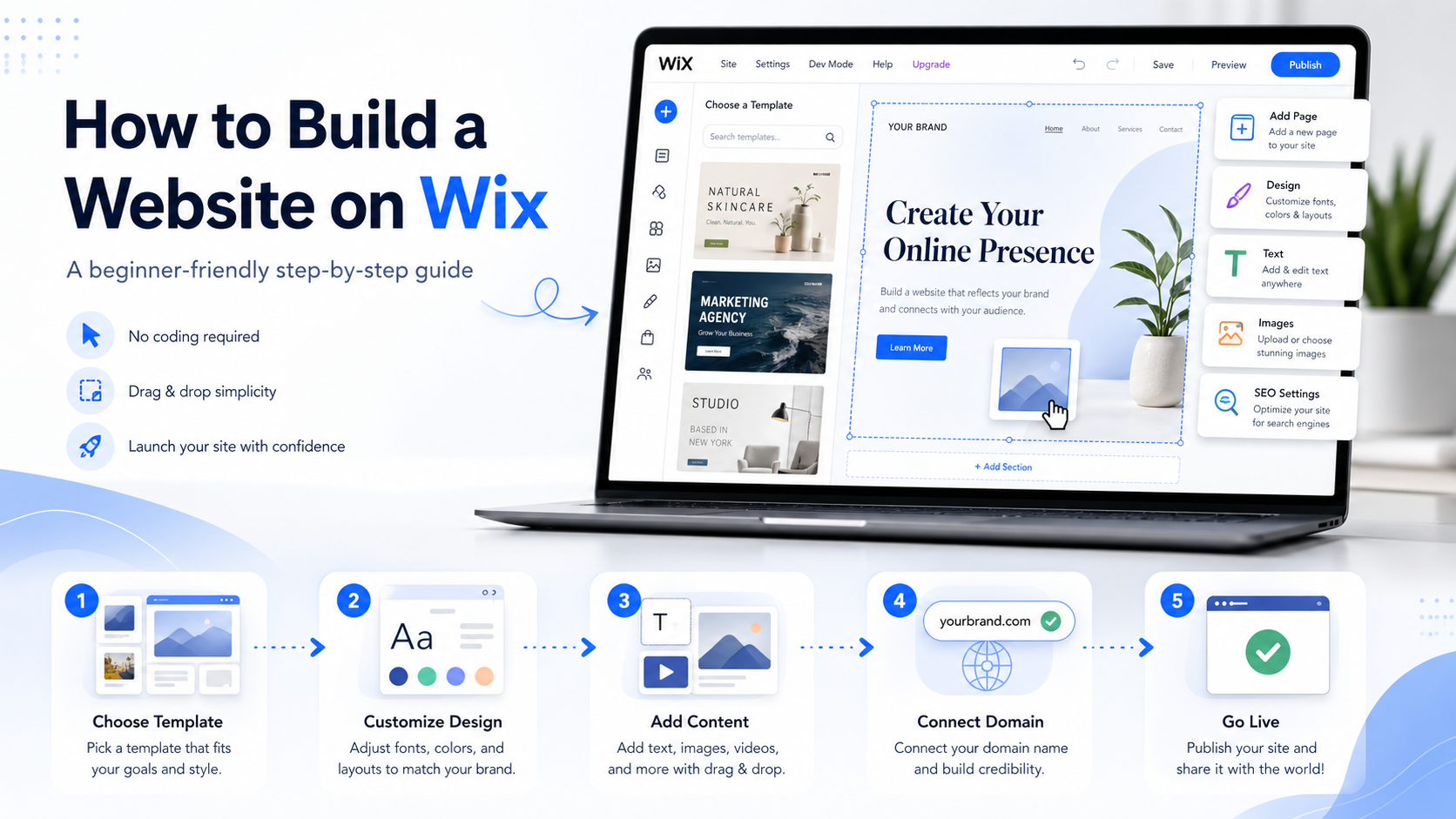
Building a website on Wix is straightforward: create a Wix account, choose a template, organize your pages, customize the design, add your content, set up basic SEO, connect a domain, preview the site, and click Publish. Wix is designed as an all-in-one website builder with templates, hosting, built-in tools, and a visual editor, so beginners can create a website without coding.
This guide walks you through the full process from template selection through going live.
Quick answer: how to build a website on Wix
To build a website on Wix:
- Create a Wix account.
- Start a new website.
- Choose a template that matches your goal.
- Add and organize your pages.
- Customize your design.
- Replace placeholder content.
- Add forms, bookings, blog, or store features if needed.
- Set up basic SEO.
- Preview desktop and mobile versions.
- Connect your domain.
- Publish your website.
- Test and improve it after launch.
Wix’s own beginner workflow follows a similar sequence: define your site purpose, choose a platform, register or connect a domain, design with a customizable template, add content, test, launch, promote, and maintain the site.
Step 1: Decide what your website needs to do
Before choosing a template, define the goal of your website. A website for a local service business needs a different structure than a portfolio, blog, online store, or booking site.
Ask yourself:
A clear goal helps you choose the right Wix template, write better content, and avoid adding unnecessary pages.
Step 2: Create a Wix account and start a new site
Go to Wix, create an account, and start a new website. Wix lets users build websites with a visual website builder, templates, built-in AI tools, and hosting included in the platform.
For a complete beginner, the easiest route is to start with a template instead of a blank canvas. A template gives you a ready-made layout that you can customize with your own text, images, colors, and sections.
Beginner tip: Start simple. Your first goal is to publish a clean, working website. You can improve the design and add more features later.
Step 3: Choose the right Wix template
Wix offers a large template library, and its website builder page states that it includes 2,000+ templates.
Choose a template based on structure, not just appearance. You can change colors, fonts, images, and sections later, but the page layout should already be close to what you need.
How to choose a Wix template
Template selection checklist
Choose a template that has:
- A clear homepage layout
- Easy navigation
- Mobile-friendly design
- Page sections close to what you need
- Room for strong calls to action
- Contact or lead-generation areas
- Blog, booking, or store features if required
Do not spend too long searching for the perfect template. A good-fit template that you can launch is better than a perfect-looking template that delays the project.
Step 4: Organize your pages and navigation
After choosing a template, review the pages that came with it. Keep the pages you need, rename them clearly, and remove pages that do not fit your website.
Wix says pages can be managed from the Pages & Menu panel in the editor, where users can rename, duplicate, and delete pages. Wix also documents that new pages can be added from Pages & Menu > Site Menu > Add Menu Item > New page, using either a blank page or a page template.
Recommended beginner page structure
For most beginner business websites, start with:
Navigation best practices
Keep your navigation short and clear. Use labels people instantly understand, such as Home, About, Services, Shop, Blog, and Contact.
Avoid vague labels like “Solutions,” “Experience,” or “Explore” unless your audience already understands what they mean.
Step 5: Customize your Wix design
Now customize the template so it matches your brand.
Change:
- Logo
- Colors
- Fonts
- Images
- Buttons
- Section layouts
- Header
- Footer
- Backgrounds
- Spacing
Wix’s design guidance frames website design as more than appearance; it includes user experience, goals, layout, mobile optimization, accessibility, SEO, publishing, and ongoing improvement.
Beginner design rules
A simple homepage layout
Use this homepage structure:
- Hero section with headline, short subtext, and CTA
- Problem or customer need
- Services or main offer
- Why choose you
- Testimonials or trust signals
- About preview
- FAQ or supporting details
- Final CTA
- Footer
A beginner Wix website does not need to look complicated. It needs to be clear, trustworthy, and easy to use.
Step 6: Replace the template content
Most Wix templates come with placeholder text and sample images. Replace all of them before publishing.
Your content should explain:
- Who you are
- What you do
- Who you help
- Why visitors should trust you
- What action they should take next
Homepage copy formula
Use this formula for your main homepage headline:
I help [audience] get [result] with [service/product].
Examples:
- “We help local homeowners create low-maintenance outdoor spaces.”
- “I design modern websites for coaches and consultants.”
- “Book beginner-friendly yoga classes in Austin.”
Page-by-page content checklist
Write for beginners, not algorithms
Your website copy should sound like a real conversation with a customer. Avoid generic lines like “We provide innovative solutions.” Instead, say exactly what you do.
Weak:“We deliver high-quality solutions for modern businesses.”
Better:“We build clean, mobile-friendly websites for small businesses that need more leads.”
Step 7: Add the features your website needs
Wix includes tools for different website types, including business websites, blogs, stores, bookings, and marketing workflows. Wix’s setup checklist for creating a site and online business focuses on using the Wix Editor to set up the site and business tools.
Add only the features you need for launch.
Beginner tip: Do not overload your first version. Too many features can make the site harder to maintain.
Step 8: Set up your basic Wix SEO
SEO helps search engines understand your website. Wix includes SEO settings and an SEO Setup Checklist that gives step-by-step guidance based on your business information and keywords. Wix also says the checklist can help connect and verify a site with Google.
Basic Wix SEO checklist
For each important page, set:
Google’s SEO Starter Guide explains that SEO is about helping search engines understand content and improving a site’s presence in Search; it also notes there is no guarantee any particular site will be added to Google’s index.
Example Wix SEO setup
For a local bakery homepage:
GEO tip for AI answer engines
To make your Wix site easier for AI systems and search engines to understand, write clear answer-first sections. For example:
What services do we offer?We offer custom website design, SEO setup, and Wix website maintenance for small businesses.
This format helps both users and machines quickly identify the topic and answer.
Step 9: Optimize images and media
Images make your website look professional, but they can also slow it down if they are too large. Google recommends using descriptive filenames, titles, and alt text because it extracts image information from the page content, captions, image titles, and surrounding context.
Image checklist
Before publishing:
- Use relevant images
- Compress large files
- Rename files descriptively
- Add alt text to meaningful images
- Avoid blurry or stretched photos
- Remove unused images from sections
- Check that images look good on mobile
Example image filename:
Bad: IMG_4829.jpgBetter: wix-website-homepage-design-example.jpg
Example alt text:
Bad: imageBetter: Small business homepage built in Wix editor
Step 10: Preview your desktop and mobile site
Before publishing, preview your site on desktop and mobile. Wix’s design guidance includes mobile optimization as part of the website design process.
Desktop preview checklist
Check:
- Navigation links
- Button links
- Page order
- Spelling and grammar
- Image quality
- Contact form
- Footer links
- Service or product details
- CTA buttons
Mobile preview checklist
Check:
- Text is readable
- Buttons are easy to tap
- Sections are not crowded
- Images do not cover text
- Navigation opens correctly
- Forms work properly
- Nothing important is cut off
Many visitors will see your website on a phone first, so mobile review is not optional.
Step 11: Connect your domain
A custom domain makes your website look more professional than a free Wix subdomain.
Wix says users can build sites for free, but they need to upgrade to connect a custom domain and unlock advanced business features. Wix also provides official domain connection methods, including connecting a domain by changing name servers or using a pointing method.
Domain examples
Domain tips
- Keep it short
- Make it easy to spell
- Avoid confusing numbers
- Avoid hyphens when possible
- Use your brand name if available
After connecting a domain, allow time for DNS changes to update.
Step 12: Publish your Wix website
When your pages, design, content, SEO settings, and domain are ready, click Publish.
Wix’s Help Center says you can publish from the top toolbar of the Wix Editor. It also notes that clicking Save does not make changes live; after saving, you need to click Publish for updates to appear on the live site.
Save vs publish
After publishing, open the live site in a new browser tab and test it like a visitor.
Step 13: Test your live website
Publishing is not the final step. After your site is live, test everything again.
Post-launch checklist
- Open the live website
- Test the navigation
- Submit the contact form
- Click every CTA button
- Check mobile layout
- Check page titles and descriptions
- Confirm domain works
- Make sure social links work
- Review spelling and formatting
- Ask someone else to test it
Wix’s launch checklist guidance emphasizes checking design, user experience, performance, and other items before, during, and after publishing.
Step 14: Promote and maintain your site
Once your website is live, share it and keep it updated.
What to do after launch
A Wix website should not be treated as a one-time project. Update it when your services, prices, offers, images, team, or business details change.
Common Wix Beginner Mistakes to Avoid
Choosing a template only because it looks nice
A beautiful template can still be a poor fit if the layout does not match your website goal. Choose based on structure first and style second.
Leaving placeholder content on the site
Before publishing, remove every demo headline, stock testimonial, fake address, and sample button.
Creating too many pages
A small website with four strong pages is better than a large website full of thin, unfinished pages.
Ignoring SEO settings
At minimum, every important page needs a clear title, meta description, URL slug, heading, and useful content.
Forgetting mobile review
A site that looks good on desktop can still feel broken on mobile. Always check both.
Publishing without testing forms
If your contact form does not work, you may lose leads without realizing it.
Beginner Wix Website Launch Checklist
Use this before clicking Publish:
FAQ
Is Wix good for beginners?
Yes. Wix is beginner-friendly because it combines templates, visual editing, hosting, and built-in website tools in one platform. Wix’s website builder page describes it as a free, easy-to-use builder with templates, AI tools, and custom domain options.
Can I build a Wix website for free?
Yes, you can start building with Wix for free. Wix states that users can build websites for free, but a Premium plan is needed to connect a custom domain and access advanced business features.
Do I need coding to build a website on Wix?
No. Wix is built for no-code website creation, and its own beginner website guide describes customizable templates as a way to design a site without coding.
How do I add a new page in Wix?
In the Wix Editor, use the Pages & Menu panel, select Site Menu, choose Add Menu Item, then select New page. Wix says users can add either a blank page or a page template.
Can I edit my Wix website after publishing?
Yes. Wix says you can keep editing your site after publishing, but you need to click Publish again for new changes to appear live.
How do I get my Wix site on Google?
Use Wix’s SEO Setup Checklist to add business information, keywords, and SEO settings. Wix says the checklist can also help connect and verify your site with Google.
What pages should a beginner Wix website have?
Most beginner business websites should start with Home, About, Services or Products, and Contact. Add Blog, FAQ, Bookings, or Shop pages only when they support your website goal.
Final Summary
To build a website on Wix, start with a clear goal, choose a template, organize your pages, customize the design, add your content, set up basic SEO, connect your domain, preview everything, and publish. Wix is a strong option for beginners because it reduces the technical work involved in building and launching a site.
Your first version does not need to be perfect. It needs to be clear, complete, mobile-friendly, and easy for visitors to use.
CTA: Start with a simple four-page Wix website: Home, About, Services, and Contact. Once it is live, improve it with SEO content, testimonials, images, and conversion-focused updates.